Planning tool
UniFi Network Builder
Assemble the system you have in mind from 83 products across nine categories, then send the whole configuration to us. No prices, no cart — we quote the hardware and the installation together.
Start from a template, or build from scratch below
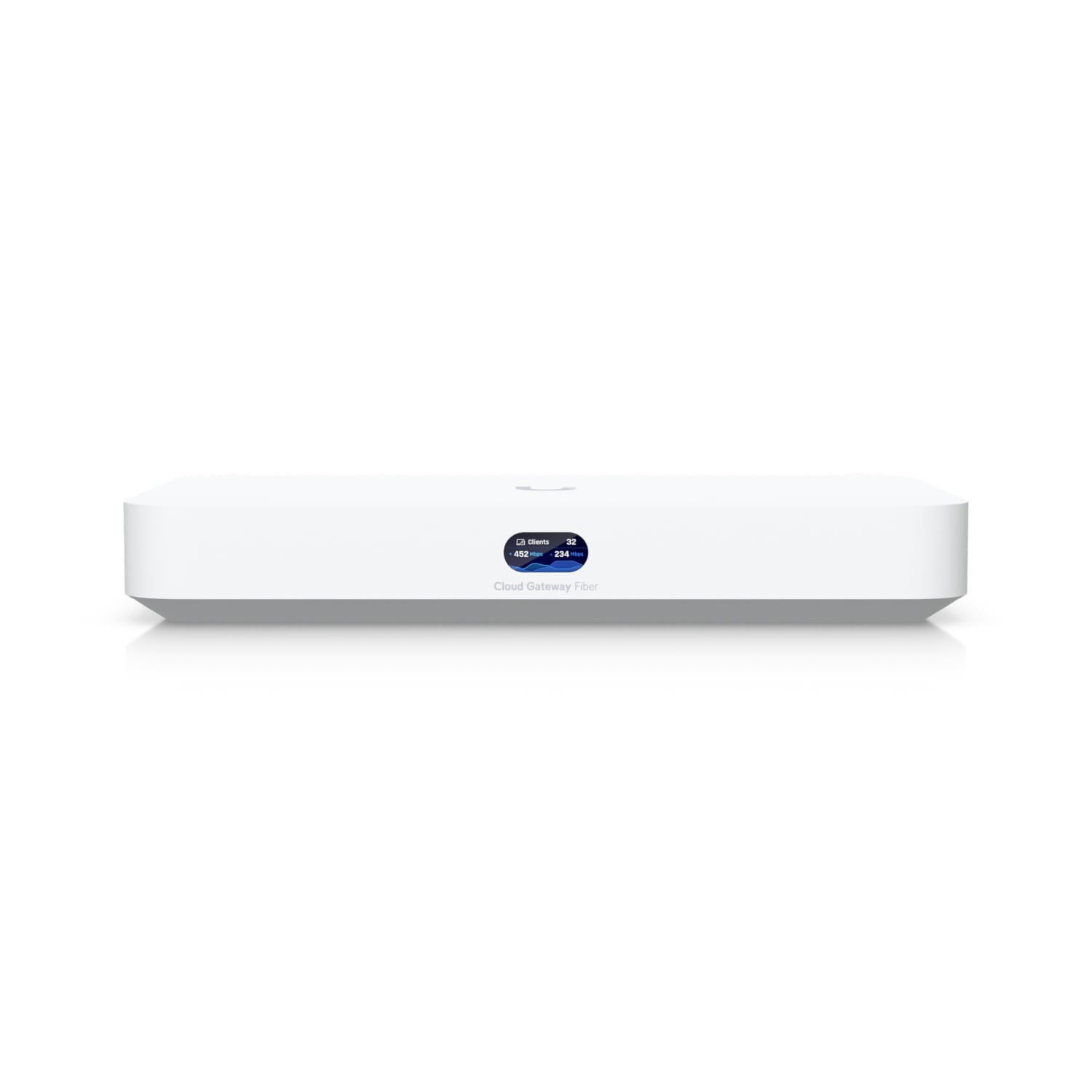
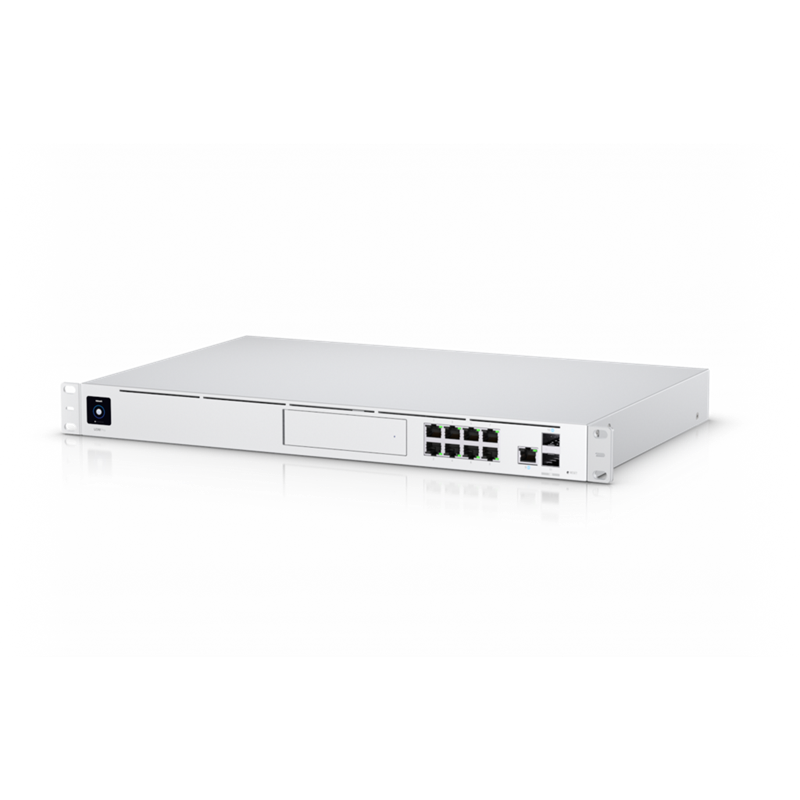
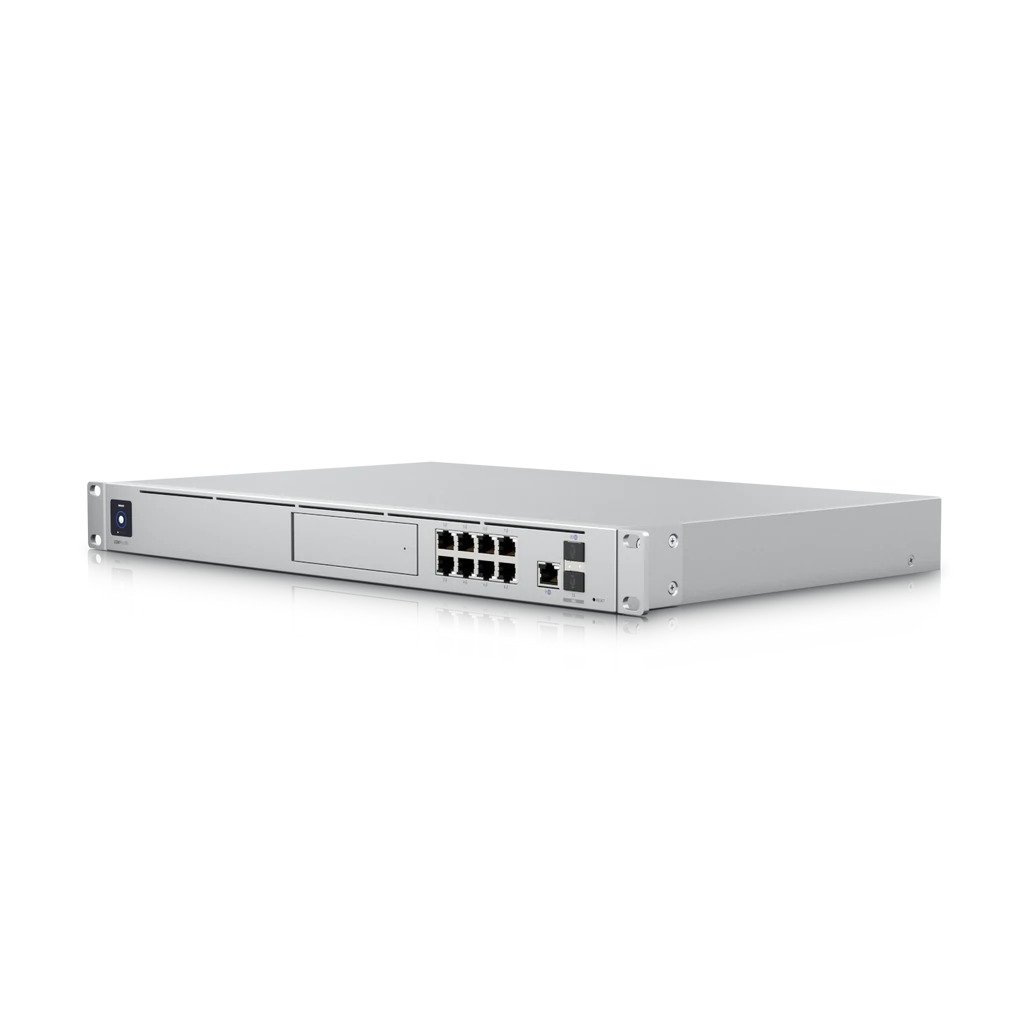
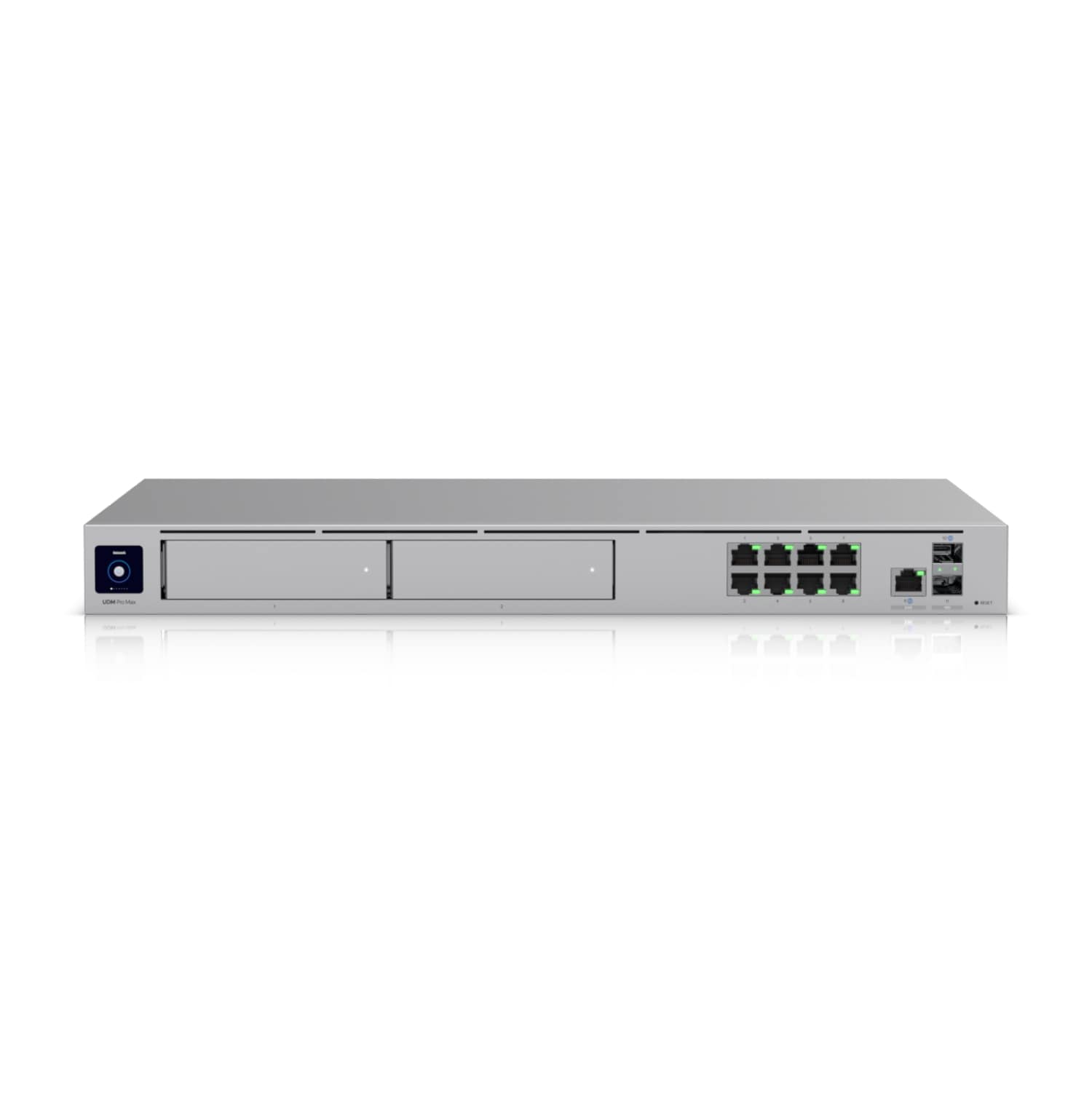
The brain of the network — routing, security and the UniFi console.
- In stock
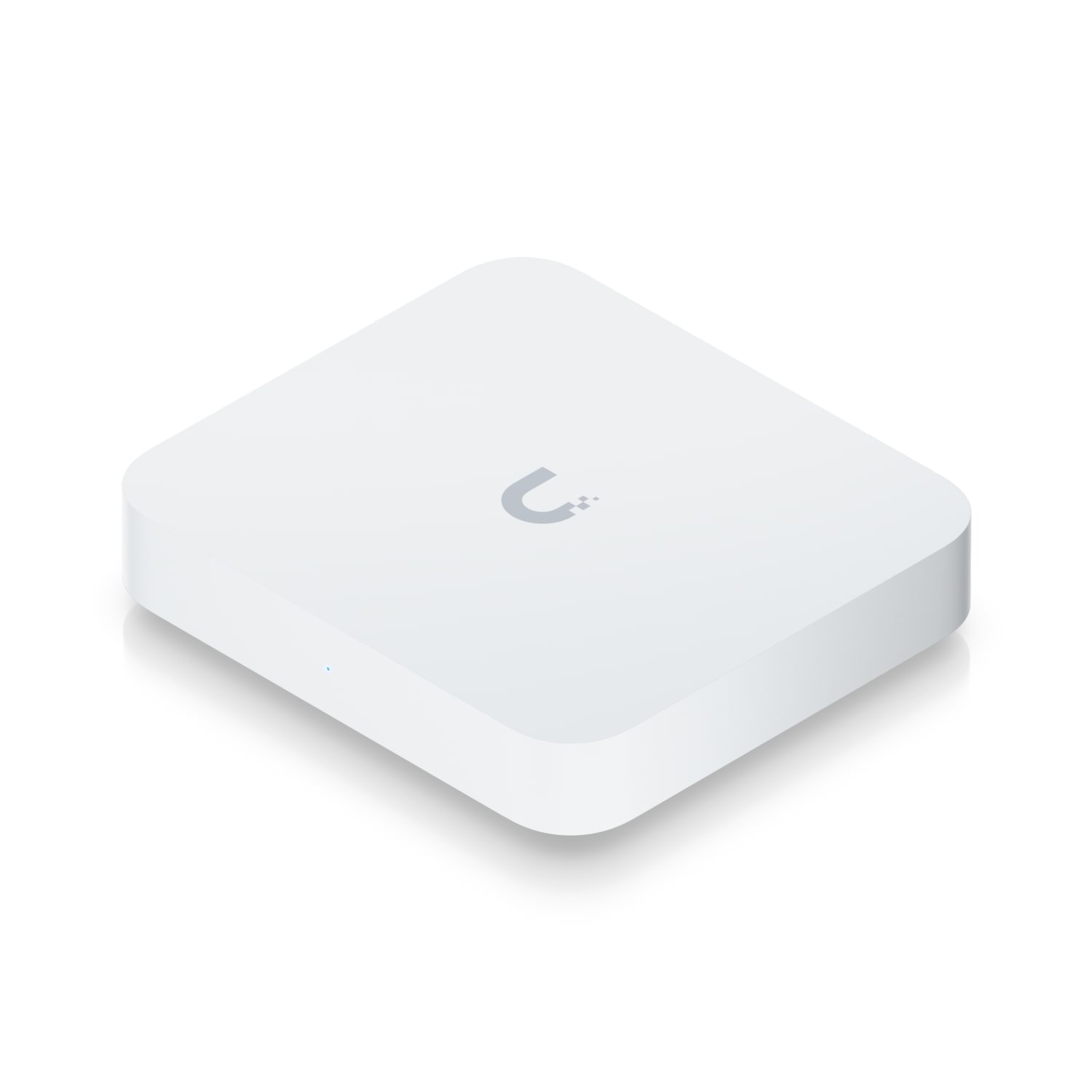
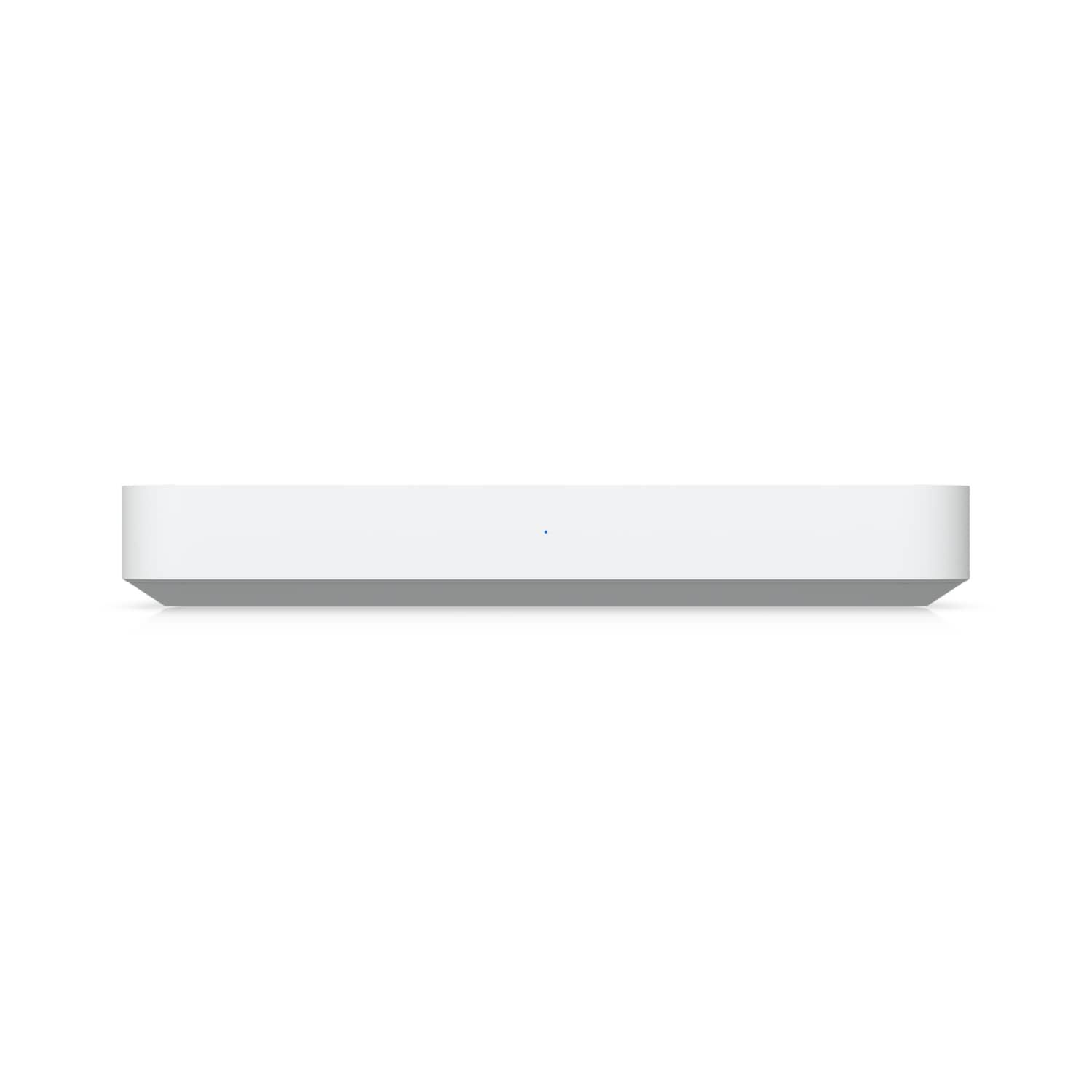
Compact gateway with IDS/IPS. Needs a Cloud Key or self-hosted console.
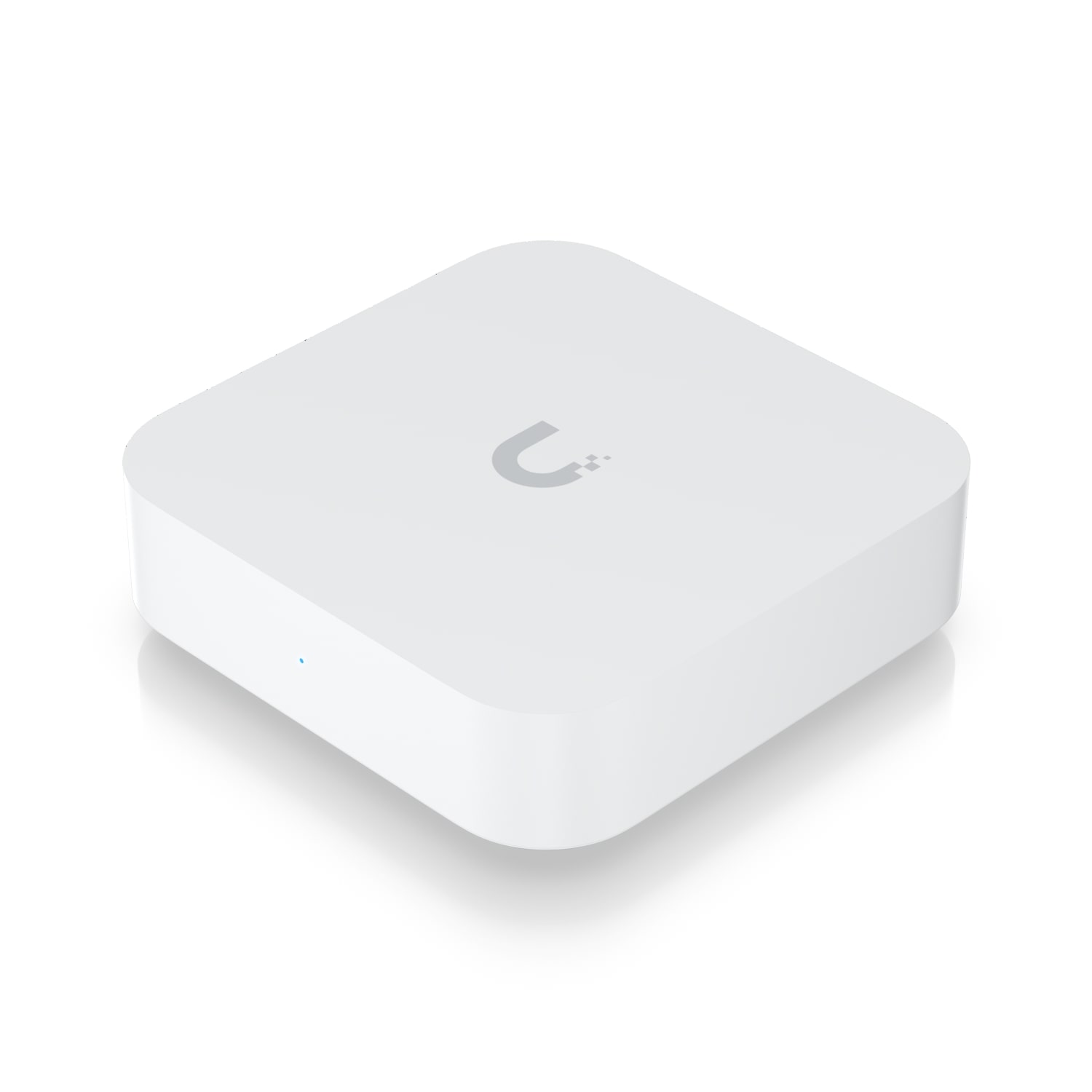
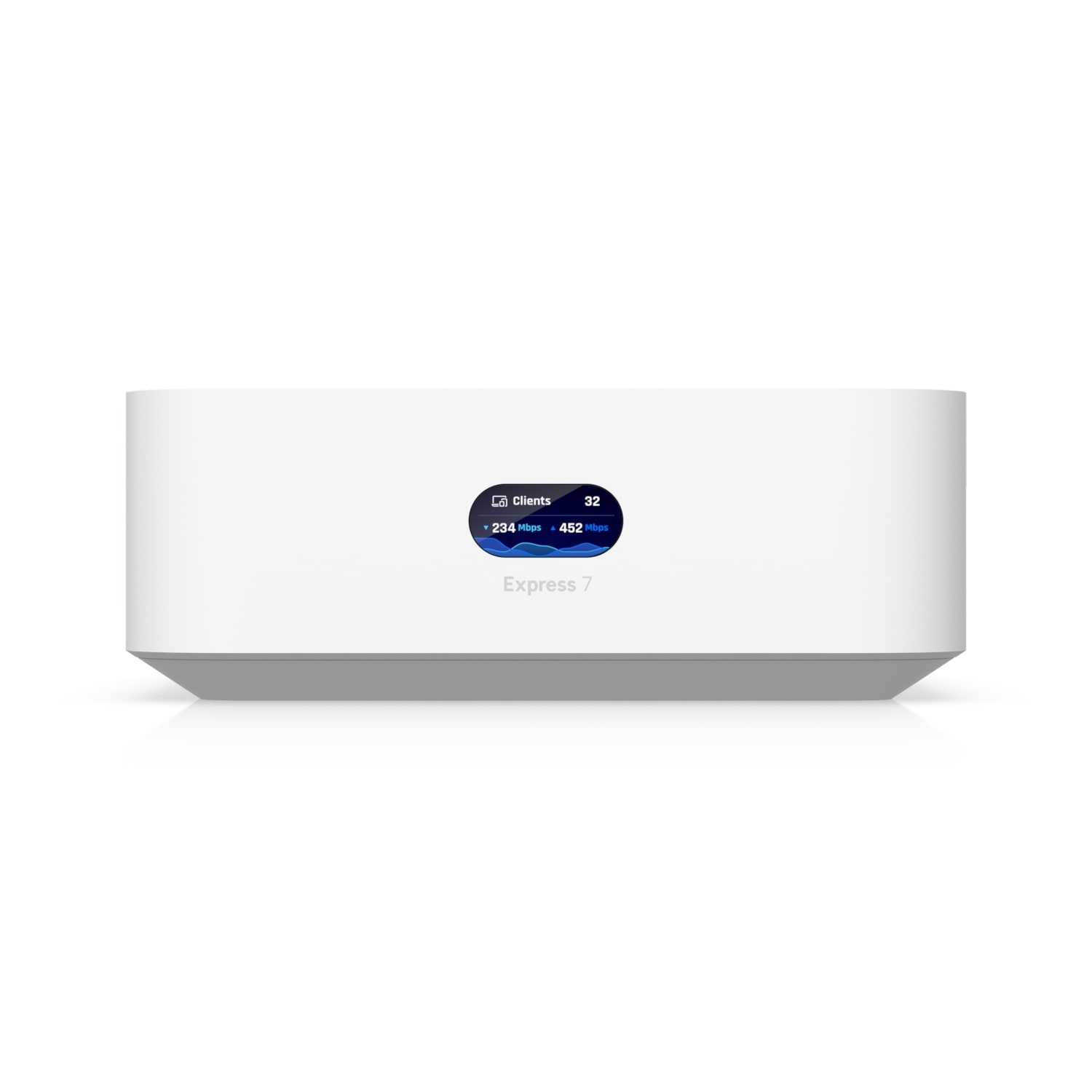
Super-compact 10G cloud gateway with built-in WiFi 7. Mesh-scalable, ~140 sqm.
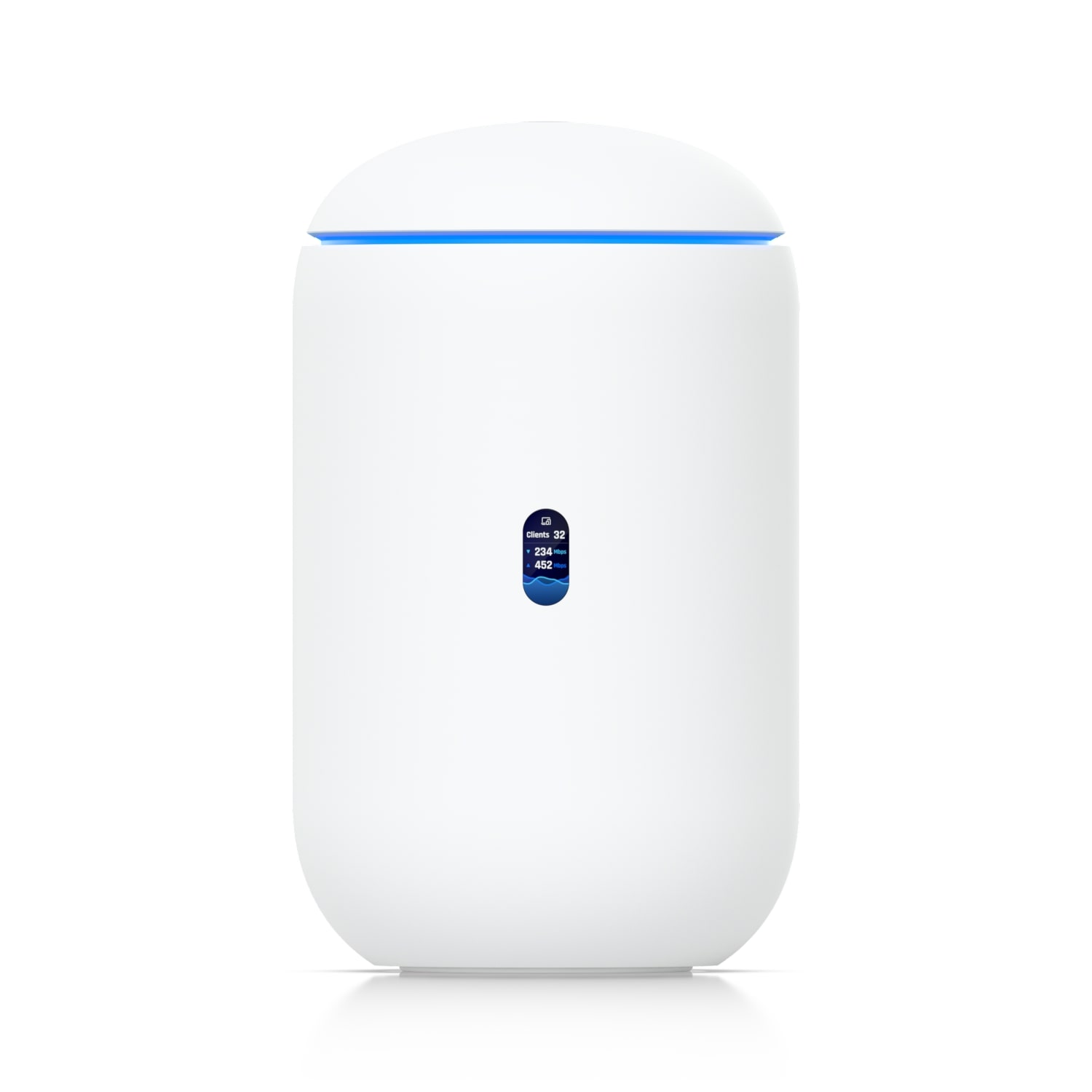
All-in-one: 10G gateway, WiFi 7, PoE ports and Protect recording to microSD.
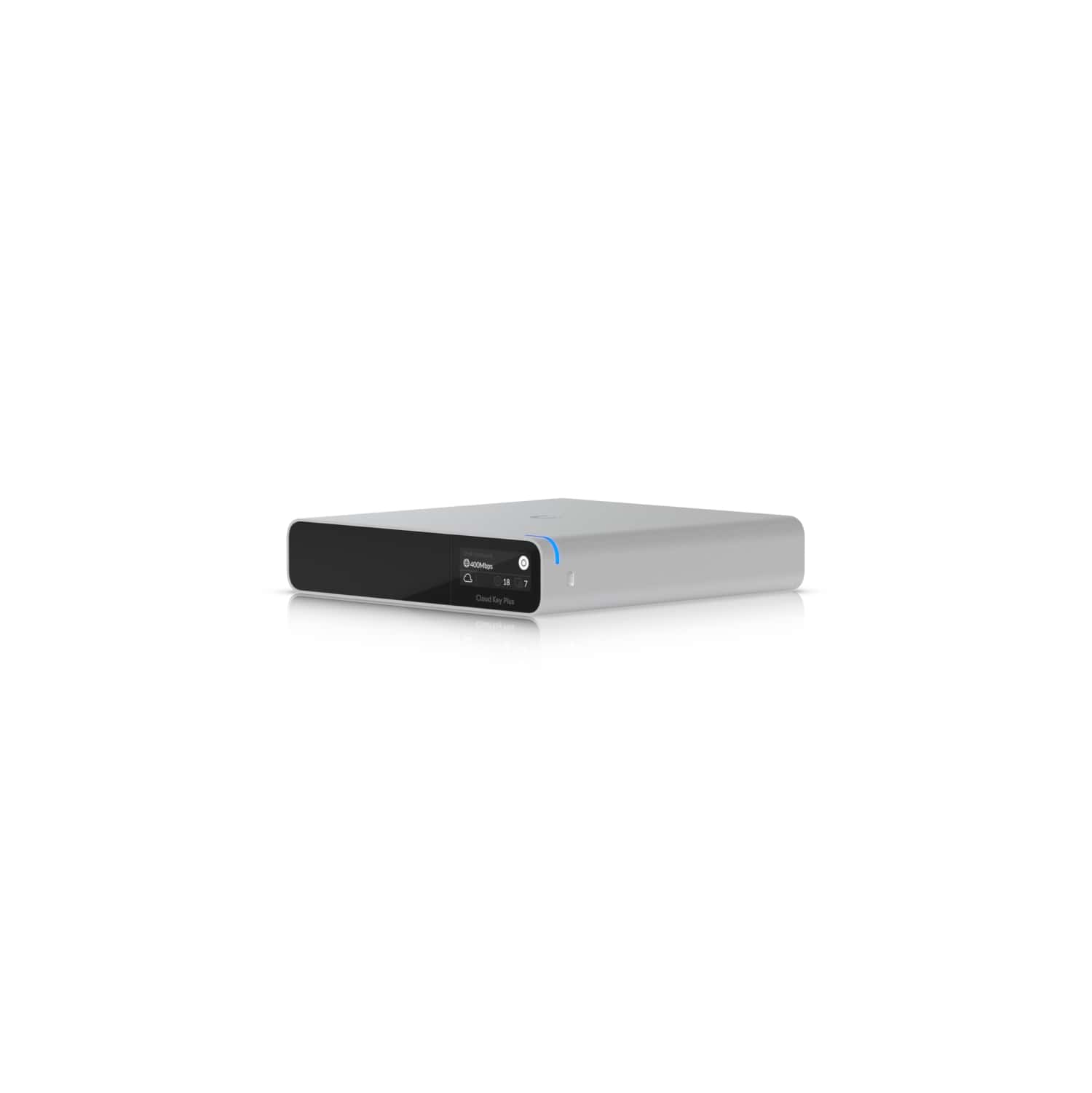
Compact 2.5G console for 30+ UniFi devices, 512 GB NVMe for Protect included.
- In stock
Desktop 10G gateway with integrated PoE switch and selectable NVR storage.
Rack-mount 10 Gbps console with an HDD bay for Protect. The classic workhorse.
UDM Pro plus 8 PoE ports - one box runs the whole house including cameras.
- Backorder
Multi-WAN load balancing and dual NVR bays for larger properties.
- In stock
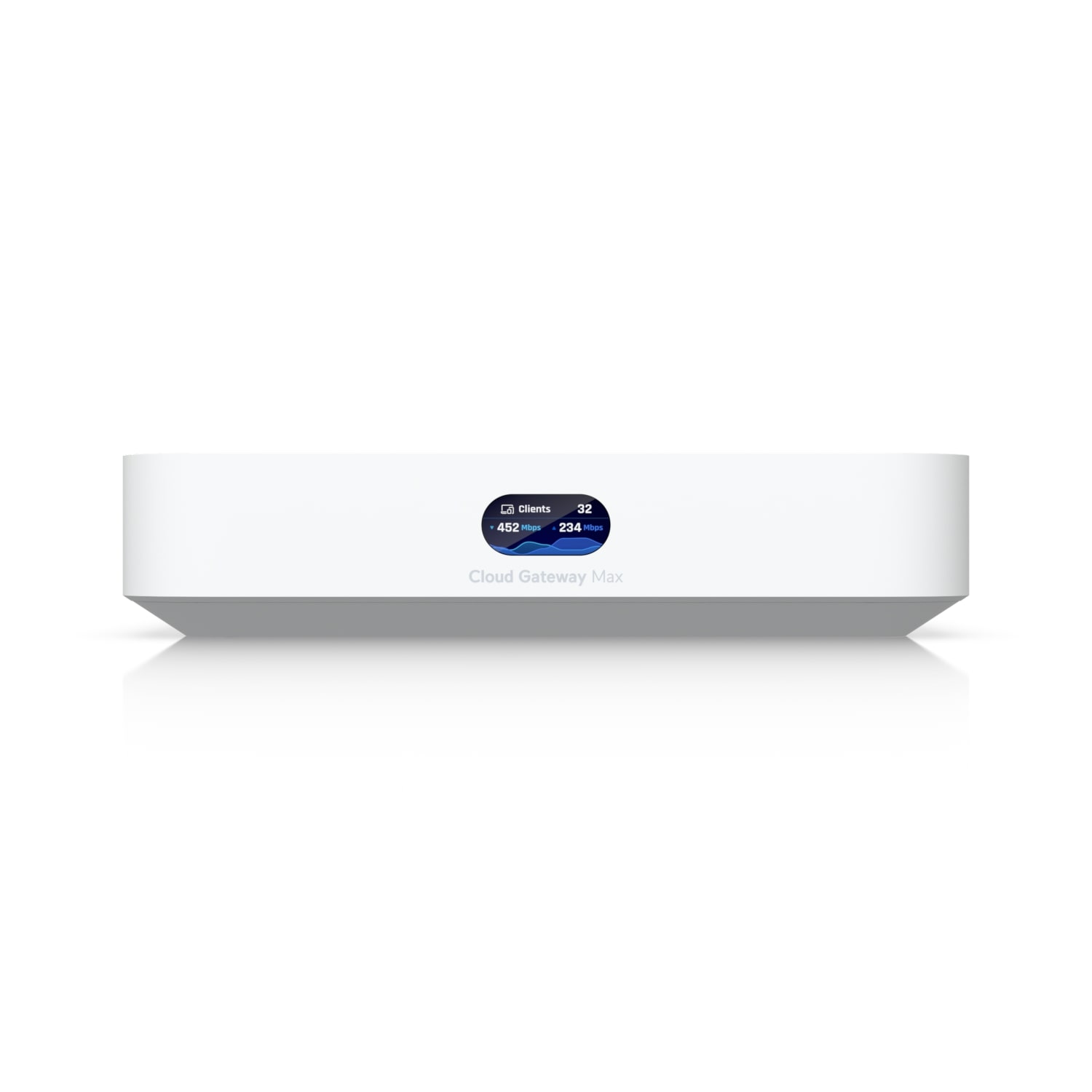
Multi-WAN 2.5G gateway, 1.5 Gbps routing with IDS/IPS. Console required.
- In stock
10G independent gateway with 4-port 2.5 GbE switch, 5 Gbps with IDS/IPS.
- In stock
UniFi OS console with a 1 TB SSD - pairs with UXG gateways for Protect.
How to use this
Build the shape, we'll sort the detail.
1. Start from a kit, or from nothing
Three starter kits cover the shapes we build most: a single-box setup for an apartment, a family home with cameras and a couple of access points, and a rack-mounted core with 4K cameras, an NVR and door access. Load one and edit it, or ignore them and build from scratch.
2. Work across the categories
Gateways set the console and the routing. Switching powers everything else. Then access points, cameras, recording, doorbells and access, smart home, mesh, and the unglamorous power and enclosure gear that decides whether it survives a Melbourne summer.
3. Watch the topology strip
As you add hardware, the panel on the right sketches the chain: NBN, then your gateway, then switching, then what hangs off it. If the chain looks wrong — an access point with no switch to power it, cameras with nowhere to record — you'll see it there first.
4. Send the configuration for a quote
The final step collects the property details and hands the whole configuration over to our quote form. There's no cart and no checkout: we price the hardware and the installation together and come back to you with one number.
Worth knowing
Questions we get asked.
- Why aren't there prices?
- Because a hardware total is the least useful number in the job. Cabling runs, mounting, cores through brick, after-hours access, configuration and handover all move the real figure far more than the RRP of a switch. We quote the whole thing at once so you can compare like with like.
- Do I need to get it right?
- No. The builder is a conversation starter, not an order. Get it roughly right and we'll adjust — half our job is telling people they need less gear than they thought, or one better switch instead of two cheap ones.
- What if something shows as backorder?
- Keep it in the configuration. Stock moves constantly and we'll tell you what's actually available and what the sensible substitute is when we quote.
- Is my build saved?
- Yes, in your own browser. Come back later on the same device and the configuration will still be there. Nothing reaches us until you send it.
Request a quote
Configuration ready? Send it over.
We'll check the design, tell you honestly what you don't need, and come back with one fixed price covering the gear, the cabling and the installation.